
GunZ Replay System | RealGunZ Replay & Camera & Video Guide
Replay Record System V2 · Cinematic Tools
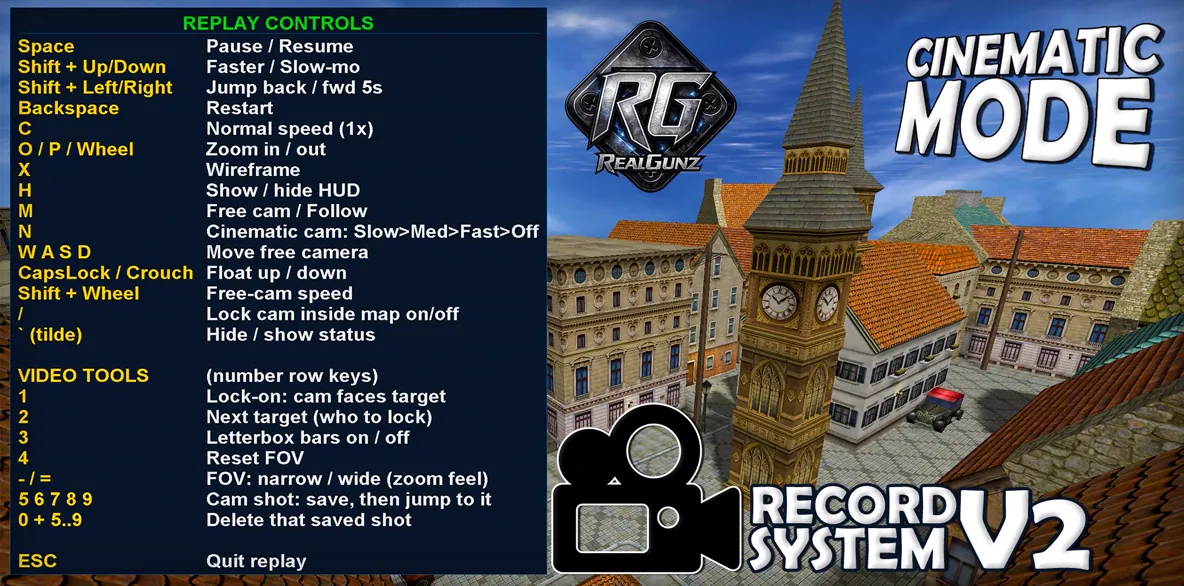
The RealGunz Records System V2 is a cinematic replay environment designed to give GunZ players and content creators much more control over recorded gameplay. Control the replay, move the camera, create cinematic shots, save camera positions and build footage for montages, trailers and videos.
🎥 What Is The GunZ Replay Record System?
The replay system in GunZ allows players to record and
watch gameplay after a match. Traditionally, replay
functionality was mainly focused on reviewing what
happened during a game.
The idea behind the RealGunz approach is different.
Instead of treating a replay only as something to watch,
the replay becomes a working environment for creating
footage. The creator can control the timeline, camera,
perspective and presentation in order to capture the
exact scene they want.
From Classic Replay To Content Creation
The difference between the traditional replay concept and the RealGunz Records System V2
The Traditional Approach
Classic GunZ replay systems are primarily designed to let players record gameplay and review a match after it has finished.
- Record gameplay
- Watch recorded matches
- Pause and resume playback
- Move through recorded moments
- Review fights and gameplay
- Follow the action from available viewpoints
A Replay Built For Production
RealGunz takes the replay concept further by giving creators dedicated camera and cinematic controls. The replay can be used as a production environment rather than simply a playback screen.
- Advanced replay navigation
- Free Camera
- Follow Camera
- Cinematic Camera Modes
- Target Locking
- Target Switching
- Letterbox Mode
- FOV Controls
- Camera Speed Control
- Saved Camera Positions
- HUD Control
- Wireframe Mode
Replay Controls
Control playback speed, timeline and replay position
Playback
Replay navigationCamera Controls
Control the camera perspectiveCinematic Tools
Create cinematic compositionsUtility Tools
Additional replay production controlsSave Camera Shots
Save and manage camera positions while creating footage
Build A Repeatable Camera Sequence
When creating a montage or cinematic video, finding the same camera position again can take time. The Records System V2 lets creators save camera positions during replay production so important angles can be kept available for later use.
Camera Shot Memory
Saved camera positions make it easier to build multiple shots around the same gameplay moment. This is especially useful when recording several angles for a montage, trailer or showcase.
Save: 5 / 6 / 7 / 8 / 9
Delete: 0 + 5 or 0 + 9
Why It Matters For GunZ Content Creators
Turning recorded gameplay into usable video material
More Than Watching A Replay
For a GunZ content creator, getting the gameplay moment is
only part of the job. The camera angle, timing, framing and
presentation can completely change how that moment looks
in a video.
Records System V2 gives creators tools to work with the
recorded match and produce their own shots instead of being
limited to the normal gameplay perspective.
Montages
Create controlled shots around kills, fights, movement and important gameplay moments.
Trailers
Build cinematic sequences using camera movement, FOV and letterbox presentation.
YouTube Videos
Capture cleaner and more controlled footage for videos, showcases and server presentations.
Target Shots
Lock the camera onto a target and switch targets while creating action sequences.
Cinematic Shots
Combine Free Cam, Cinematic Mode, Letterbox and FOV controls to build different compositions.
Faster Production
Saved camera positions and replay controls make it easier to recreate important shots.
Replay Production Meets Vulkan 13
One of the most interesting parts for content creators is
using the Records System V2 together with the RealGunz
Vulkan 13 experience.
The replay system gives the creator control over the
recorded gameplay and camera, while Vulkan 13 provides
the graphical environment in which the footage is viewed
and captured.
Records System V2 · Complete Quick Guide
Full keyboard reference
🎮 Replay & Camera
🎬 Cinematic & Utility
How To Create A Cinematic GunZ Shot
A simple workflow for creators
Open The Replay
Load the recorded gameplay you want to use for your video.
Find The Moment
Use the replay controls to find the exact gameplay moment you want.
Build The Camera Shot
Switch to Free Cam or Cinematic Mode and position the camera.
Record The Footage
Hide the HUD, adjust FOV, use Letterbox and capture the final scene.
For cinematic footage, try combining Free Cam with Cinematic Camera Modes, Letterbox, FOV control and saved camera positions. This lets you build several consistent shots from the same replay without repeatedly rebuilding the camera setup.
🎬 RealGunz V1 · Records System V2
RealGunz V1 provides the game experience, while the Records
System V2 adds a dedicated environment for replay viewing,
camera control and cinematic production.
For GunZ content creators, this means recorded gameplay can
become more than something to watch. It can become the raw
material for montages, trailers, showcases, YouTube videos
and cinematic sequences — especially when combined with the
visual possibilities of the RealGunz Vulkan 13 experience.